![Flinn-Logo (1)-2.png]](https://help.flinncomply.com/hs-fs/hubfs/Flinn-Logo%20(1)-2.png?height=43&name=Flinn-Logo%20(1)-2.png)
Step 1. Add a new search
Create a search by clicking on the + Add search button at the top left corner of the Searches screen below.
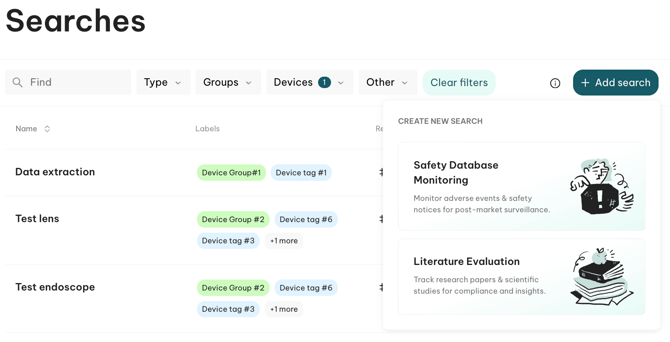
This action will create a new search, represented by a new row in your table. By default your search will be named Search + Date of the day, we will rename it in Step 3.
Who can see my search?
💡 All searches are shared within the organization and can be viewed and accessed by every member. This means that your new search will be accessible to every team member with a Flinn account.
Step 2. Name your search
At the top of the Search configuration space, you will find the title of your search. To rename your search, simply click on the search title and enter a new name of your choice.
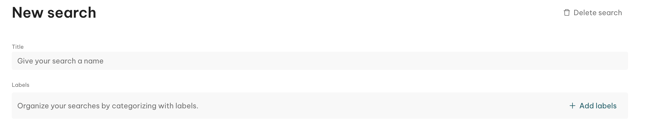
A full-page presentation to understand every part of the Search Configuration Space is accessible on this page Search configuration space.
Optional: Associate Labels to your search
You can associate any label you want to a search.
We have designed three label types where you can define labels in the settings:
-
- Devices
- Groups of devices
- Other
See the guide to create labels
Step 3. Select Time Frame
Dates selection
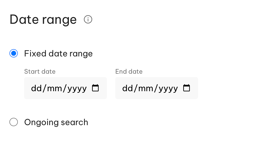
The start and end dates determine the time-frame for your search. To set these dates, youcan directly type them in the following format: day/month/year
example: 01/01/2022 (1st of January 2023)
or use the 🗓 calendar icon to access a calendar view and select the date wanted.
If your laptop date configuration is set on the format: month/day/year - it will be the same in Flinn.
Important information:
💡 The start and end dates are inclusive, which means that any report published on those specified dates will be queried and accessible in the results list.
Ongoing mode
You can also set a search to Ongoing for continuous monitoring of the databases according to your query keywords, see more information.
Step 4. Create a Query
Create a query by clicking on + Add query

- Give a title to the query
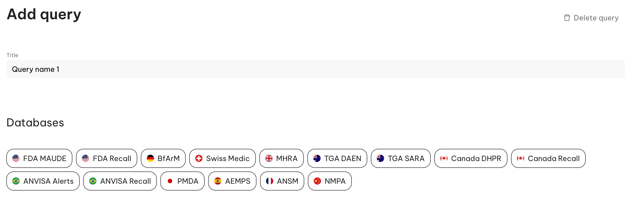
- Select Databases
The database buttons offer an overview of the currently supported databases. You can select or unselect specific databases to search across multiple databases simultaneously. This allows you to customize the coverage of your search according to your preferences. - Write a query
This step involves writing keywords for your search. Every keyword and operator you enter in the Query field will be searched across the selected databases and within the defined time-frame. Check-out our Write my 1st query guide.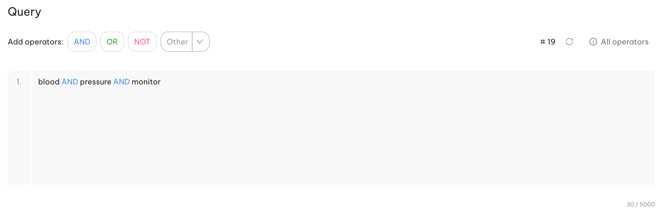
💡 Don’t hesitate to ask any questions or for help using the in-web chat if you encounter any problems during your query creation
📖 A detailed explanation for each operator, as well as best practices, can be found on this page: Create an advanced boolean query
Step 5. Execute your search
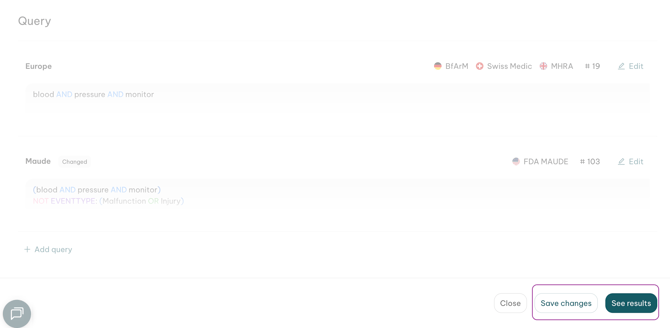
If you have completed all the previous steps successfully, you can now proceed with your search. To do this, simply click on the "See results" button located at the bottom right corner.
Important information:
💡 Clicking on Save changes or See results will save you search configuration
Step 6. Check your results and refine your query as needed
Congratulation, you have successfully created, configured and executed your first search! 🎉
You can now view the results generated by your search configuration. For detailed information about this Results List, please refer to the Results list page. This resource will provide insights into the features and columns available.
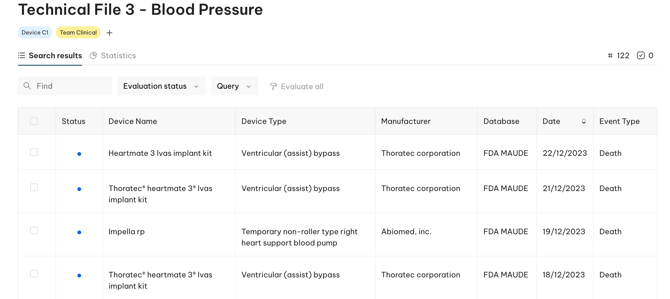 Once you feel you've understood how the table works, you can start opening reports by clicking on a row.
Building an effective query in one attempt is nearly impossible. We recommend taking the time to explore multiple reports and refining your query iteratively. This involves adding or excluding certain keywords to improve the relevance of the results. Contact your Flinn Expert if you need any help!
Important information:
💡 Flinn allows a maximum of 10,000 results to be queried for a single query. If a query produces 10,000 results, it indicates that there may be even more results beyond the limit
⚠️ If you change your query and click on See results, the new results will displayed and you will not see your previous results anymore.
However if you revert back the query to what it was before, all past results and evaluations will be back.
If you still need support, don’t hesitate to contact us.