![Flinn-Logo (1)-2.png]](https://help.flinncomply.com/hs-fs/hubfs/Flinn-Logo%20(1)-2.png?height=43&name=Flinn-Logo%20(1)-2.png)
The search configuration space is the core of the incident surveillance journey. Here, you can find assistance for configuring your search, including important information, advice, and examples to properly configure your search.
💡 All searches are shared within the organization and can be viewed and accessed by every member. If you change a search configuration every team member will see the same change.
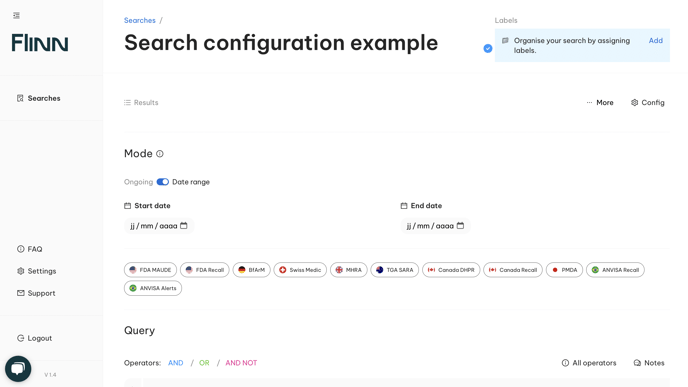
Search configuration presentation
Search title
At the very top of the Search configuration space, you can read your search’s title. Your search title can be easily edited by clicking on it and typing directly a new name.
Results / Configuration tabs
Below the search title you can see the Results / Configuration tabs which allow you to navigate between the Search configuration space, where you can configure your search, and the Results list, where you can see the results of your search.
This tab design works like a web browser, which allows you to efficiently go back between your configuration and your results to iterate.
Start and End date
The Start and end Date define the time-frame within which you want your search to be executed.
You can either type directly the dates using the following format: day/month/year:
example: 01/01/2022 (1st of January 2022)
or using the 🗓 calendar icon to access a calendar view and select the date wanted.
💡 The start and end dates are inclusive, which means that any report published on those specified dates will be queried and accessible in the results list.
Databases
The databases buttons provide you a overview of the currently supported databases. The development of Flinn search engine has been thought to be able to search across multiple databases at the same time. Custom your desired databases by simply selecting or deselecting databases.
💡 Flinn database has been built and validated to mirror the entire content of official databases. Every report present on MAUDE, BfArM etc.. is accessible via Flinn.
Query
The query is the space where you define the search keywords you want to search for. It works like the search bar on Google, with some advanced construction possibilities.
The Query space is divided into 2 parts:
- the List of available operators (AND, OR, AND NOT…)
- the keywords space to combine your search keywords
Depending on your devices and search strategy queries can go from very simple keywords combination like:
( disposable OR sterile ) AND syringe
More elaborated queries with multiple operators and keywords such as:
((( disposable OR disposables OR single-use ) AND ( syringe OR syringes ) OR ( insulin AND lymphatic AND perfusion ) OR ( "Perfo-ultra 3" OR "Perfo-light X" )) AND (PRODUCTCODE: "LKJ" OR PRODUCTCODE: "NHL")) AND EVENTTYPE: "Death"
If you are not familiar with boolean queries (a combination of keywords and operators) we advise you to start by following the Write my 1st query guide, which will guide you step by step through the query creation.
💡 Don’t hesitate to ask any questions or for help using the in-app chat if you encounter any problems during your query creation
📖 A detailed explanation for each operator, as well as best practices, can be found on this page: Create an advanced boolean query
See results and Apply changes button
At the bottom right corner of the Search configuration space, you can find the See results button which will allow you to execute your search and generate a list of results. If you already have results generated, the button becomes apply changes.
⚠️ The dates, databases selection and query, are unsaved until you click on the See results / Apply changes button. This means that if you don’t apply your changes, and leave the page, your new configuration edits won’t be updated.
⚠️ By clicking on the See results / Apply changes button, you overwrite all results that have been previously queried. If you wish to try a different configuration but still keep the existing results, create a new query and mirror the configuration to edit it.