![Flinn-Logo (1)-2.png]](https://help.flinncomply.com/hs-fs/hubfs/Flinn-Logo%20(1)-2.png?height=43&name=Flinn-Logo%20(1)-2.png)
Welcome to the Searches list page help space. Here you can find help for all actions conducted on the Searches list page.
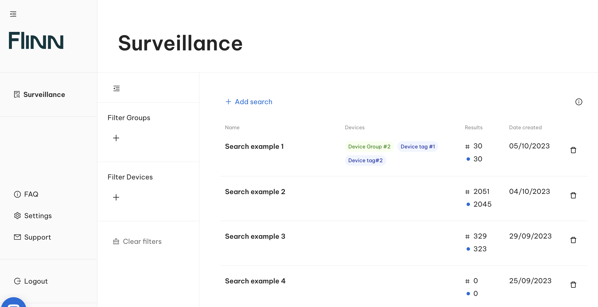
The search list page is the starting point of the incident surveillance journey. Here, you can create and manage your organization searches, access each search, and assign devices and groups of devices to your searches.
💡 All searches are shared within the organization and can be viewed and accessed by every member.
Create my first search
To guide you through your first search, we've created the Create my 1st search page. Follow the steps outlined there to create a search successfully.
Searches detailed information
The Searches table has five columns: Unread, Search name, Devices, Groups of devices, and Date. We aim to make this table as user-friendly as possible, so we are always open to ideas for improvement.
Search Name
The search name column allows you to identify your search within the list of searches. A default name is given to the search upon creation, but we encourage you to use your own standard.
To rename your search, access the search configuration space by clicking on the search name, and then click on the current search name to begin renaming it.
Devices and Groups of devices
The devices column and the Groups of devices column allow you to associate one or multiple device names or groups of devices with your search. Devices can refer to any medical product or sub-product of your organization. Groups of devices are typically technical files, but can also be any other grouping of devices.
To configure your organization's devices and groups of devices, follow the steps outlined on the Create my 1st device or and group of devices page.
💡 The purpose of the devices and groups of devices is to provide traceability for your entire organization regarding the scope of each search. The names of the devices and groups of devices will be included in the export at the end of your incident surveillance.
Results column
The results column displays the total number of results and the number of unread incident results for that search. These numbers help you identify the remaining reports to assess for each search.
💡 If the column displays "- -," it means that the search has not been executed yet. To learn more about executing your search, see Create my 1st search.
Date
The Date column displays the date on which the search was created. This date cannot be modified. The search list is chronologically organized from the most recent search created to the oldest one.
Searches list FAQ
-
❓ How can I create a new search?
The Create my 1st search page will guide you step by step to successfully create a search.
-
❓ How can I archive a search?
Simply click on the bin icon on the right side of the search row and your search will be archived until you wish to delete it definitely.
-
❓ How can I rename my search?
To rename your search, access the search configuration space by clicking on the search name, and then click on the current search name to begin renaming it.
-
❓ How can I manage my devices and groups of devices?
All guidance to create or edit the organization devices and groups of devices can be found in Create my 1st Labels.