![Flinn-Logo (1)-2.png]](https://help.flinncomply.com/hs-fs/hubfs/Flinn-Logo%20(1)-2.png?height=43&name=Flinn-Logo%20(1)-2.png)
This page provides important information and best practices to ensure the quality of your query.
💡 Contact us with the in-app chat or by email if you encounter any problems during this guided tutorial.
Step 1. Define your Search Strategy
The query is the space where you define the search keywords you want to search for. It works like the search bar on Google, with some advanced construction possibilities. Therefore, the first step is to define your Search Strategy.
You can use the following questions to help you define your search strategy:
- What are the devices concerned by this Incident Search?
- Note down the names of devices + name of your brand
examples: Evo-X, Elektra Medical
- Note down the names of devices + name of your brand
- What are the competitive devices concerned by this Incident Search?
- Note down the names of competitive devices + names of the competitive manufacturer
examples: InIt-3, Siemens
- Note down the names of competitive devices + names of the competitive manufacturer
- What are the device categories and types of devices concerned by this Incident Search?
- Note down all the different device categories and types of devices
examples: blood pressure monitor, dental implant
- Note down all the different device categories and types of devices
- What are the intended uses of your devices?
- Note down keywords describing problems, diseases, or impacts your devices solve or bring to patients.
examples: hypertension, diabetes
- Note down keywords describing problems, diseases, or impacts your devices solve or bring to patients.
- What are the precise technical components or technology of your devices?
- Note down the names of technologies or technical components.
examples: Lithium-ion Battery, Bluetooth 5.1
- Note down the names of technologies or technical components.
Step 2. Understand basic operators
Check the page Understand Boolean Operators before starting to write your query.
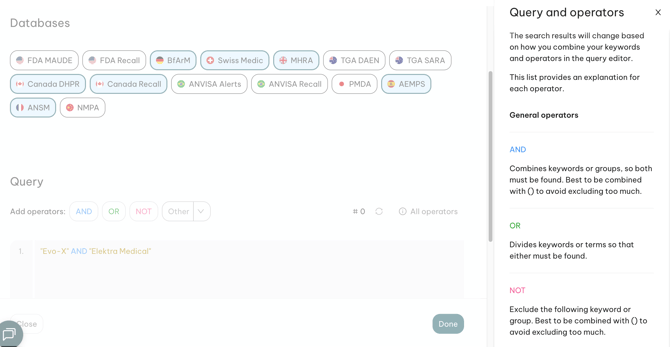
In Flinn, you can also see a definition of all available operators by clicking 💡How to use operators on the right side of the query builder — a side panel will open.
Step 3. Write down your query
Now it's time to write down your query. The purpose of this step is to combine your keywords from your search strategy, using operators to generate as focused and qualitative results as possible.
Depending on your devices and search strategy, queries can go from a simple keyword combination like:
(disposable OR sterile) AND syringe
to more elaborate queries with multiple operators and keywords, such as:
((disposable OR disposables OR "single-use") AND (syringe OR syringes)) OR (insulin AND lymphatic AND perfusion) OR ("Perfo-ultra 3" OR "Perfo-light X") NOT (Canula OR Canulas)
Best practices for a qualitative query:
- Avoid generic keywords alone — e.g.
Defibrillator OR.... It's better to combine such keywords with more precise terms fitting your device to avoid irrelevant results:(Defibrillator OR Defibrillators) AND Automated AND External - Consider acronyms and synonyms — e.g.
(Defibrillator OR Defibrillators OR AED) AND Automated AND External - Don't forget to consider plural terms — e.g.
(Defibrillator OR Defibrillators OR AED) AND Automated AND External - Organize your query using line breaks and spaces — keep your query understandable using line breaks between different parts. Line breaks are not considered as an OR; you always have to specify which operator you need between different lines.
- Exclude keywords that would bring irrelevant results — use
NOTdirectly before the keyword or group you want to exclude, without addingANDbefore it. For example:((Defibrillator OR Defibrillators OR AED) AND Automated AND External) NOT Electrode
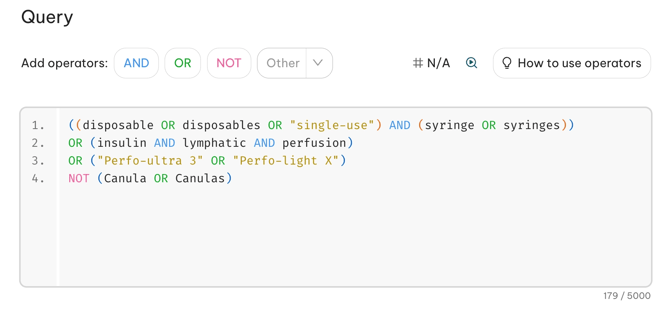
Et voilà! You wrote your first boolean query, well done! 👏🎉
Important information:
💡 Currently, Flinn supports English and German keywords. Other languages won't break the query but might not bring any results.
💡 The search execution is case-insensitive, meaning you don't have to worry about upper or lower case letters. The word 'Monitor' will return reports containing both 'Monitor' and 'monitor'.
💡 Line breaks are not considered as an OR — you always have to specify which operator you need between different lines.
💡 Always use an operator between 2 keywords — otherwise Flinn won't be able to properly execute the search. Use the AND operator or, for an exact search, quotation marks.
⚠️ Always remember to execute your search to save your current configuration version. Click Run & see results when you want to save, run the search, and go straight to the results list. Click Save changes and run when you want to save and run your changes while staying in the search setup/edit context.
Step 4. Verify and execute your search
💡 This is the step where you save your search configuration.
Now it's time to verify your query. Follow the verification procedure:
Verification procedure
- Verify that the query does not contain unwanted characters like
; , / !etc. - Verify the use of operators — all brackets
()must be in pairs and closed; all quotation marks" "must be in pairs and closed; all operators and keywords must be separated by spaces. - Verify that you have chosen a date frame and a set of databases.
Once you've completed all the previous steps, you're ready to execute your search. Use the button in the bottom right corner:
- Run & see results saves your configuration, runs the search, and then takes you to the results list.
- Save changes and run saves your configuration changes and runs the search while keeping you in the search setup/edit context.
Executing the search saves all the search configurations until you make further changes.
Step 5. Access the result list
Congratulations, you have successfully created, configured, and executed your first search! 🎉
You can now view the results generated by your search configuration. For detailed information about the results list page, see Results list page. This resource will help you understand every feature and column available.
Once you have a good understanding of how the table works, you can begin opening reports by clicking a specific row.
💡 Flinn allows a maximum of 10,000 results to be queried for a single search. If a search produces 10,000 results, there may be more results beyond the limit.
⚠️ Every time you click Run & see results or Save changes and run, all previously queried results are overwritten. If you want to try a different configuration while retaining the existing results, create a new query and replicate the configuration for editing.
Step 6. Enhance your query
To obtain high-quality results, your query will likely need some improvements. Explore the current results to identify overly generic or irrelevant keywords, then use these findings to refine and enhance your query.
Improvement example:
- My query currently generates 10,000+ results:
((Defibrillator OR Defibrillators OR AED) AND Automated AND External) NOT Electrode - I've identified: many irrelevant pacemaker device reports in my results, and many Automated External Defibrillator devices that don't include a monitoring technology like my device.
- I refine my query with those learnings:
((Defibrillator OR Defibrillators OR AED) AND Automated AND External AND Monitor) NOT (Electrode OR pacemaker OR pacemakers) - I execute my query and now get 274 results.
By increasing the quality of results, you increase the proportion of included results — the results that possibly contain important incidents for your company.
💡 Advanced operators such as Product Code or Exact Term can also be valuable in enhancing the quality of your query. For a detailed explanation of each operator and best practices, see Understanding Operators.
We hope this guide was helpful. Don't hesitate to send feedback to feedback@flinncomply.com and help us improve this guide.