![Flinn-Logo (1)-2.png]](https://help.flinncomply.com/hs-fs/hubfs/Flinn-Logo%20(1)-2.png?height=43&name=Flinn-Logo%20(1)-2.png)
The Flinn Cite for Word add-in lets you insert citations from your Flinn literature straight into a Word document and build the reference list automatically — no copy-pasting between tools.
Open Flinn in Word
- Open Microsoft Word and the document you want to work in (or a new blank one).
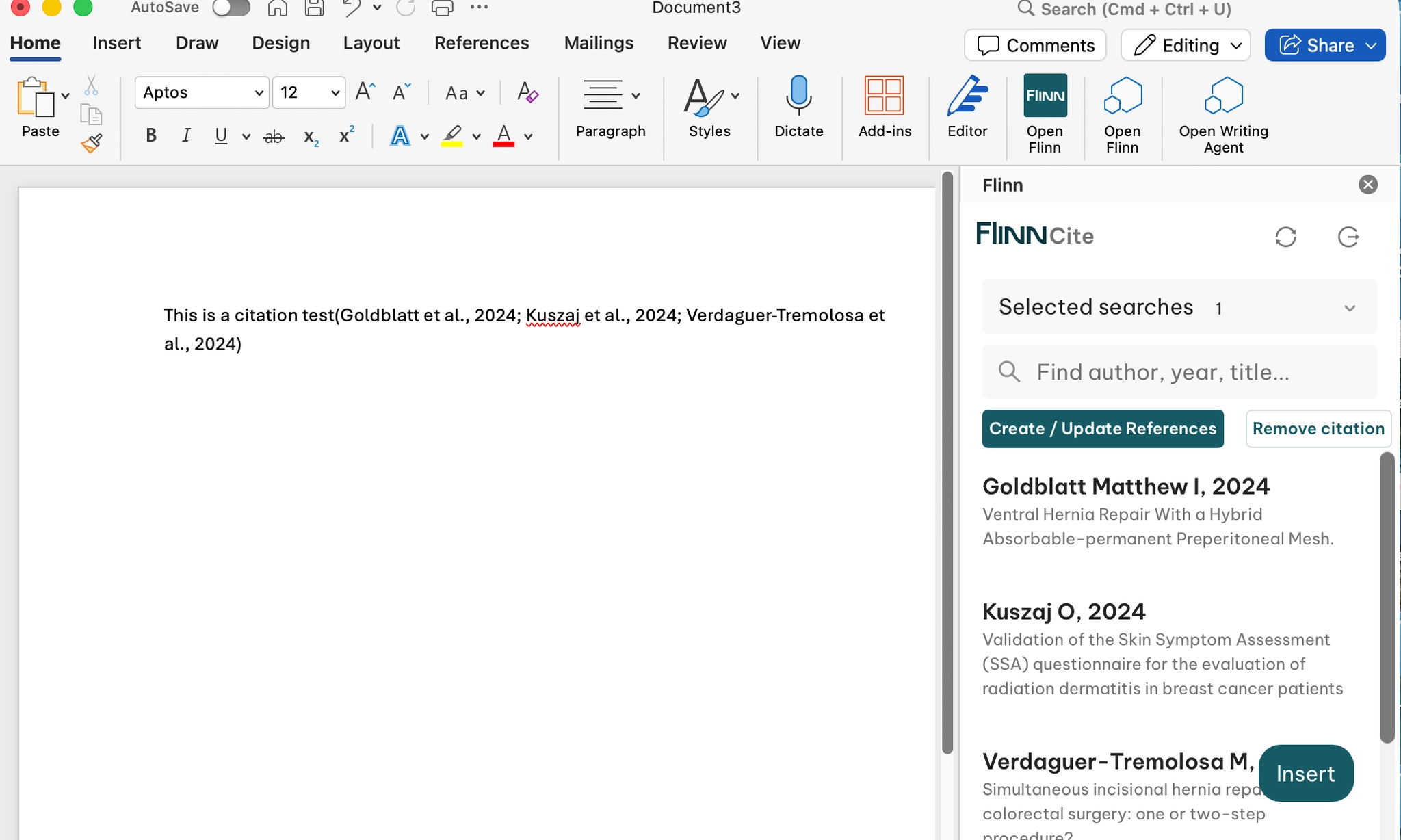
- Open the Add-ins menu (Home → red window icon).
- Select Flinn to open the Flinn panel on the right-hand side.
1. Log in
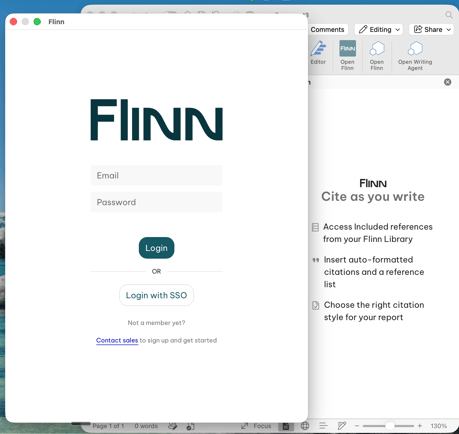
Enter your Flinn email and password in the panel, then click Log in.
2. Browse and filter your literature
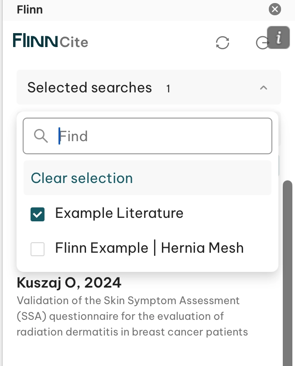
After login you'll see your literature list. Use the selector at the top of the panel to switch between your saved searches/collections — the list updates to match your selection.
3. Insert a citation
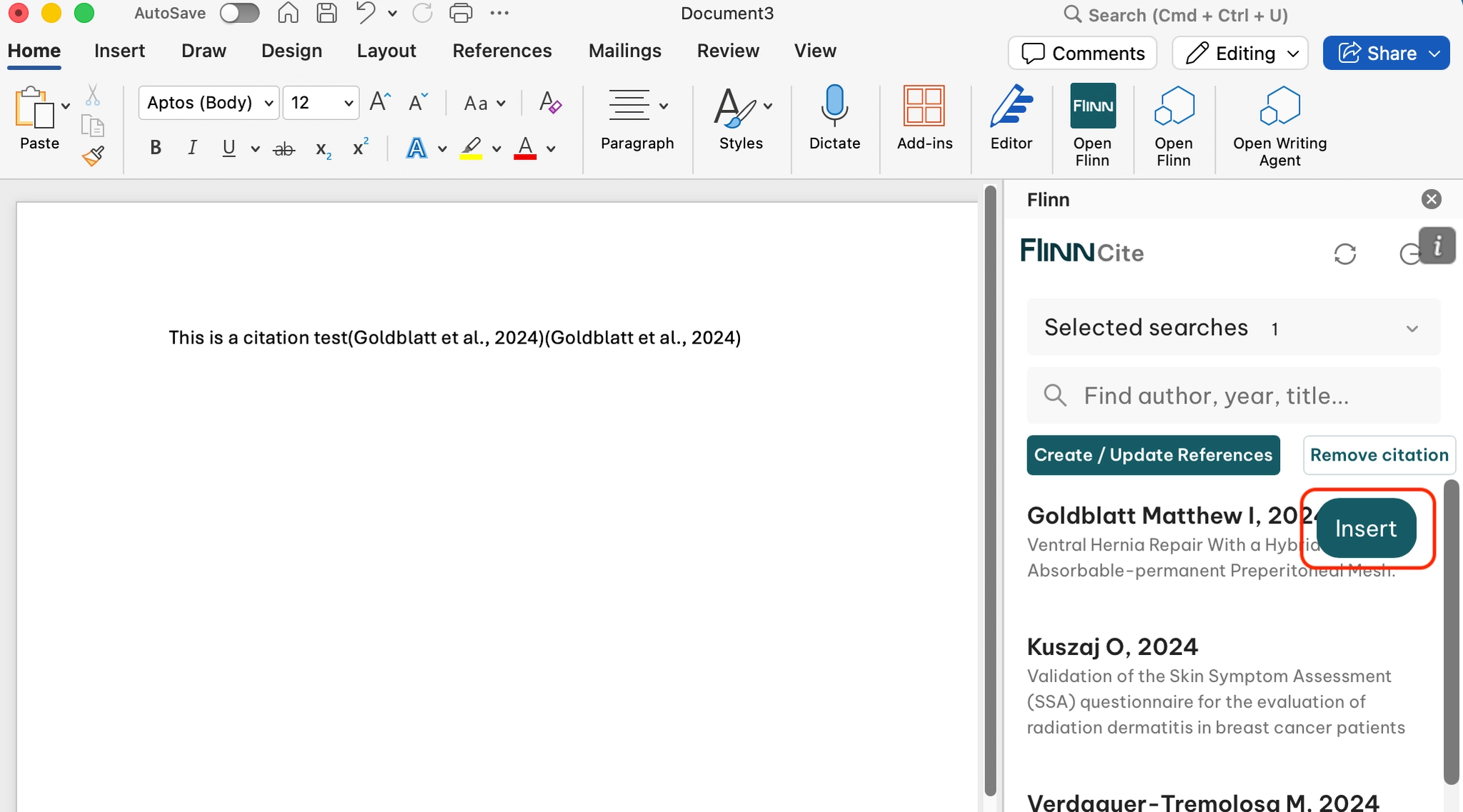
- Click in the document where the citation should appear (place the cursor).
- In the Flinn panel, hover over the literature item you want.
- Click Insert — the citation is inserted at your cursor.
4. Generate or update the reference list
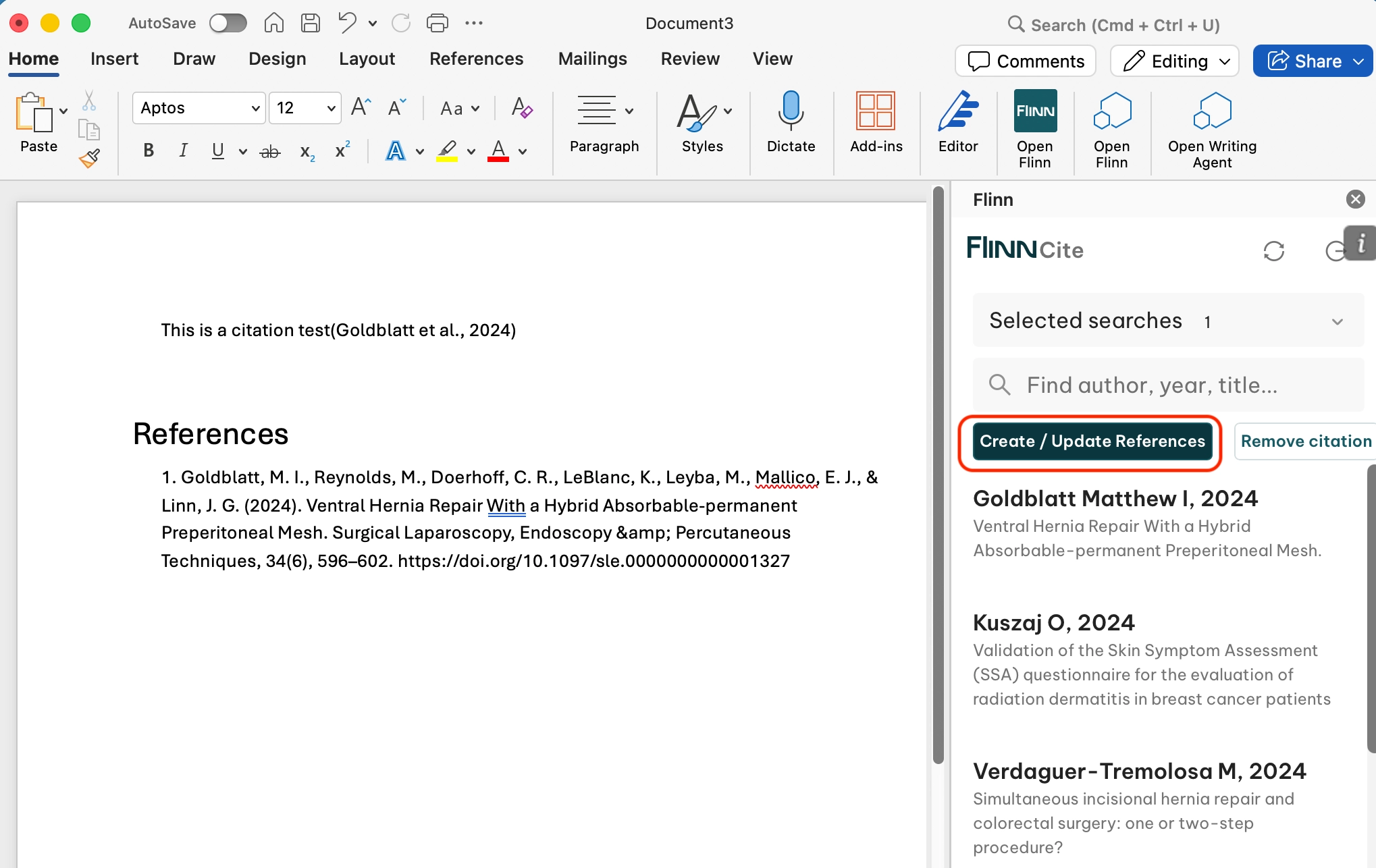
After inserting one or more citations, click Generate/Update References. Flinn creates (or refreshes) a reference list at the very end of the document. Click it again whenever you add more citations.
5. Remove a citation
- Click inside an existing citation in the document.
- In the panel, click Remove Citation.
- Click Generate/Update References again to refresh the list.
6. Combine multiple sources in one citation bracket
- Insert the first citation as usual.
- Place your cursor on the existing citation.
- Pick another literature item and click Cite again — the bracket updates to include both sources together.
Need help?
If anything is unclear or you run into issues, contact Flinn support and we'll be happy to help.