![Flinn-Logo (1)-2.png]](https://help.flinncomply.com/hs-fs/hubfs/Flinn-Logo%20(1)-2.png?height=43&name=Flinn-Logo%20(1)-2.png)
The Results List page provides a comprehensive view of all the current results obtained from your last search execution. It presents a single table that combines key information for each incident report. On this page, you will find a detailed presentation and important information to effectively navigate and utilize the features available.
💡 Once you have executed a search, the results list generated is 100% saved and will stay identical until you ‘apply changes’, meaning execute again the search.
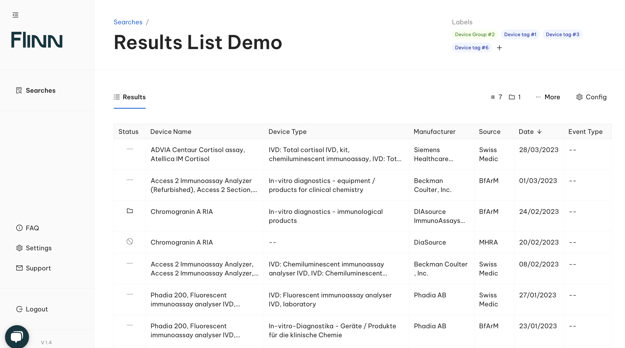
Search title
At the very top of the Search configuration space, you can read your search’s title. Your search title can be easily edited by clicking on it and typing directly a new name.
Results / Configuration tabs
Below the search title, you will find the Results/Configuration tabs that enable quick navigation between the Search configuration space and the Results list.
The tabs function similarly to a web browser, allowing you to easily switch back and forth between configuring your search and reviewing the search results.
Number of Results and Export results button
Above the top right corner of the table, you can see the number of results your search generated, and, the button to trigger the export.
💡 Flinn allows a maximum of 10,000 results to be queried for a single search. If a search produces 10,000 results, it indicates that there may be even more results beyond the limit.
The export button will export, in an Excel file, all results present in the results table. To learn more about the export settings explore the Export my 1st search results page.
💡 The export button is disabled for searches with no results or if the search has not been executed yet.
Results table
The results table is made of the following column: Status, Device Name, Device Type, Manufacturer, Source, Date, and Event Type. Let’s explore the information you will find in each column.
Status column
The status column allows you to see each report's status. By clicking on the column header you can filter by status to organize your list.
Statuses are listed and explained below:
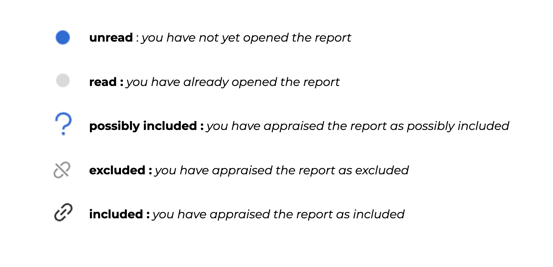
💡 Statuses are individual to each search, meaning a report with a possibly included status from Search A, will be by default unread for Search B.
Device name
The Device Name column displays the name of the devices mentioned in each report. This information is sourced directly from the original report in the official database.
Device Type
The Device Type column in the results table displays the type or category of the devices mentioned in each report. This information is sourced directly from the original report in the official database
Manufacturer
The Manufacturer column in the results table displays the name of the manufacturer or company that produced the device mentioned in each report. This information is sourced directly from the original report in the official database.
Source
The Source indicates the provenance of each report (example: MAUDE, MHRA etc..)
Date
The Date column in the results table displays the date of the report's upload on the official database. For example, if a report was submitted on January 3, 2022, it will be displayed as 03/01/2022 in Flinn.
Event Type
The Event Type column in the results table displays the severity of the event for each MAUDE report. This information is specific to MAUDE and may not be available for reports from other databases such as BfArM or Swissmedic.
Search last execution and Pagination
At the bottom of the results list, you will find two additional sections:
- The Search last execution field: This text indicates the date and time of the last update of the results list. It is automatically updated when you re-execute your search, providing you with the precise timing of the latest results.
- Pagination: The pagination navigator allows you to navigate through the pages of results.
Sorting the results table
You can sort a column by clicking on the column name. The results list allows you to sort the results alphabetically by the following columns:
- Device Type
- Manufacturer
- Event type
You can also sort the results chronologically by the following column:
- Date
We've received feedback indicating a strong need for filtering options. Our filtering feature is currently under development and will be available soon.