![Flinn-Logo (1)-2.png]](https://help.flinncomply.com/hs-fs/hubfs/Flinn-Logo%20(1)-2.png?height=43&name=Flinn-Logo%20(1)-2.png)
Query notes let you document the rationale behind a search query or add other relevant context for your team.
They are useful for collaboration and audit transparency because they explain why a query was built in a certain way.
!Important: Query notes are for documentation only. They are not part of your search query and do not affect your search results.
How query notes work:
1. Add a note
You can add notes while creating or editing a query:
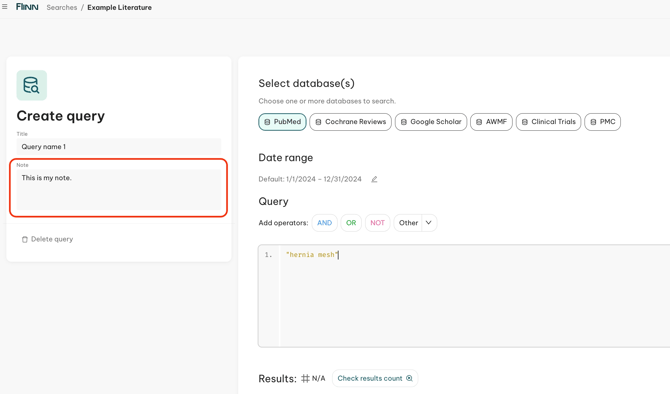
- In Literature Evaluation, use the grey Note box on the left side of the query builder.
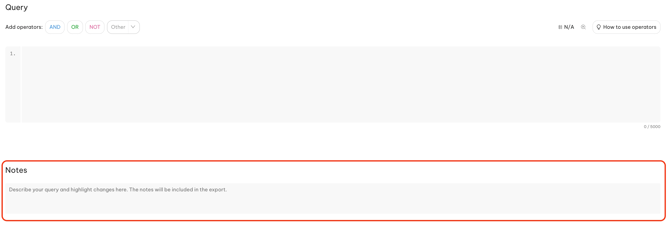
- In Safety Database Monitoring, use the Note box below your query.
2. Edit or delete a note
You can edit or delete your justification notes at any time. Select the note you want to change, then click Edit or Delete.
3. Export notes
When you export your search, query notes are included in the Excel file. This helps keep your search decisions traceable and audit-ready.
Where to find the note box
Literature Evaluation
Use the grey Note box on the left side of the query builder.
Safety Database Monitoring
Use the Note box below your query.