![Flinn-Logo (1)-2.png]](https://help.flinncomply.com/hs-fs/hubfs/Flinn-Logo%20(1)-2.png?height=43&name=Flinn-Logo%20(1)-2.png)
Labels let you organize your searches and establish traceability across your entire organization. They're included in the export generated at the end of your search, ensuring comprehensive documentation.
Assign labels to a search
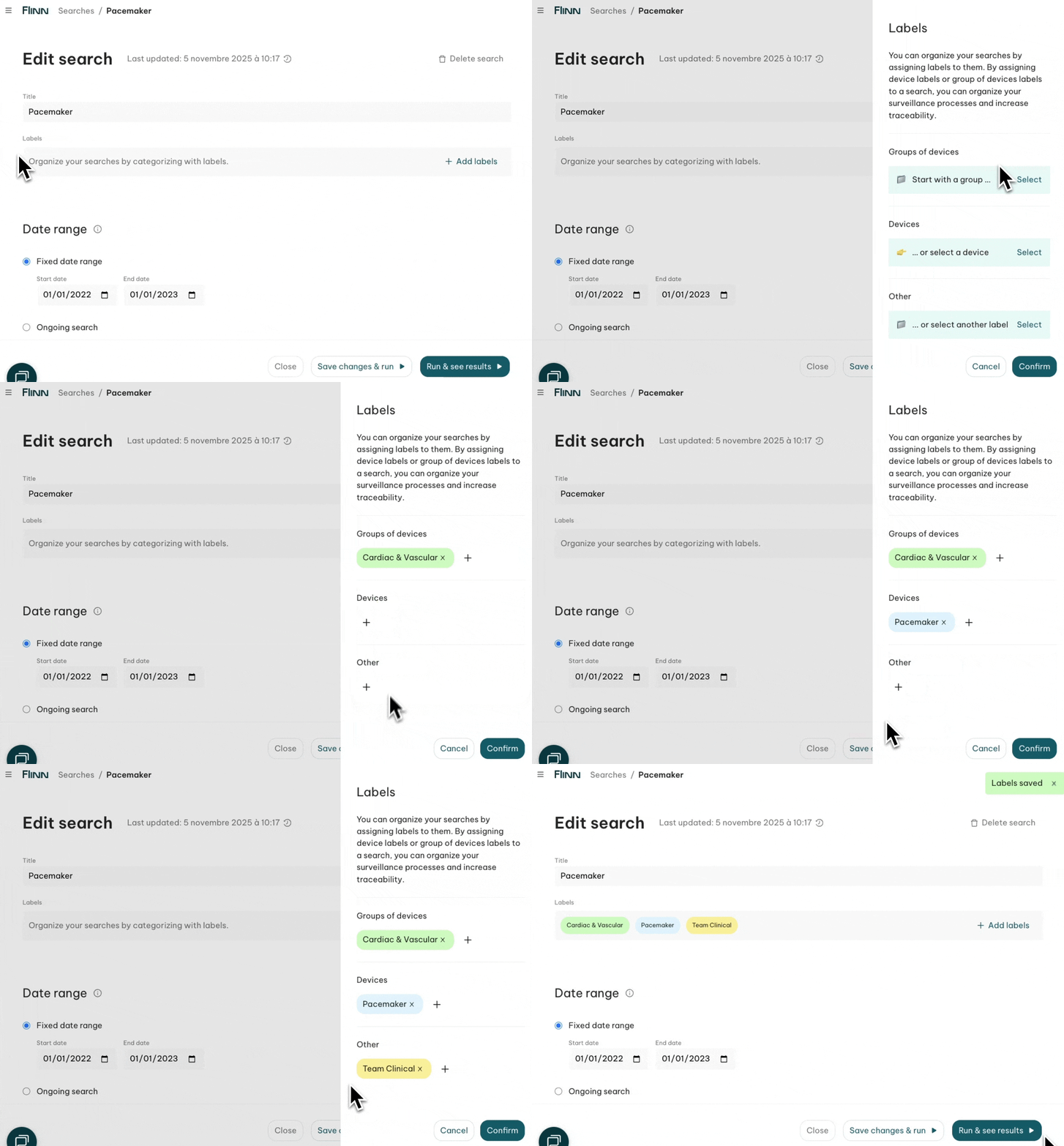
Go to your search configuration page — this is also where you set the time frame and configure your queries.
Under the Title field, you'll see Labels. Click + Add Labels on the right to assign different label types to your search. This is a great way to keep your searches organized across your team.
💡 For Flinn Library users: assigned labels are also visible in the Library.
Create and manage labels (Admins)
To view and create labels, go to Settings > Labels
This section serves as the central location for your entire organization to create, edit, and delete Devices and Groups of Devices.
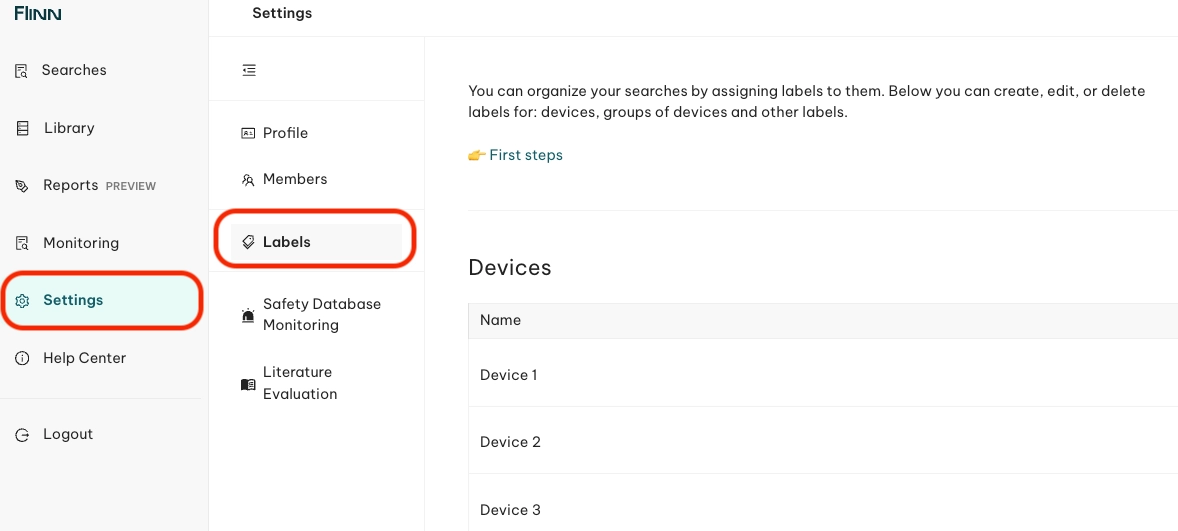
Screenshot of the Devices setting space
💡 Labels are shared within the organization and can be used by all users and edited by admins in your team.
How to create Labels
Click + Add Device or +Add group of devices or +Add Labels to create your first label. This generates a new row where you can enter a new label name. Press Enter or click outside the row to save it.
Edit or delete Labels
To rename a label, click on it and type your change directly in the row, then press Enter or click outside the row to save.
💡 Two labels can't share the exact same name.
To delete a label, click the trash bin icon at the end of its row and confirm the deletion. If the label was assigned to a search, it's simply unassigned from that search.
Create relations between Devices and Groups of devices
To establish a strict hierarchy between Devices and Device Groups, use the Relation Columns in the Group of Devices table. Any relationship between a Device tag and a Device Group is reflected when you assign tags to a search — assigning a Device Group tag automatically assigns all related Device tags too.
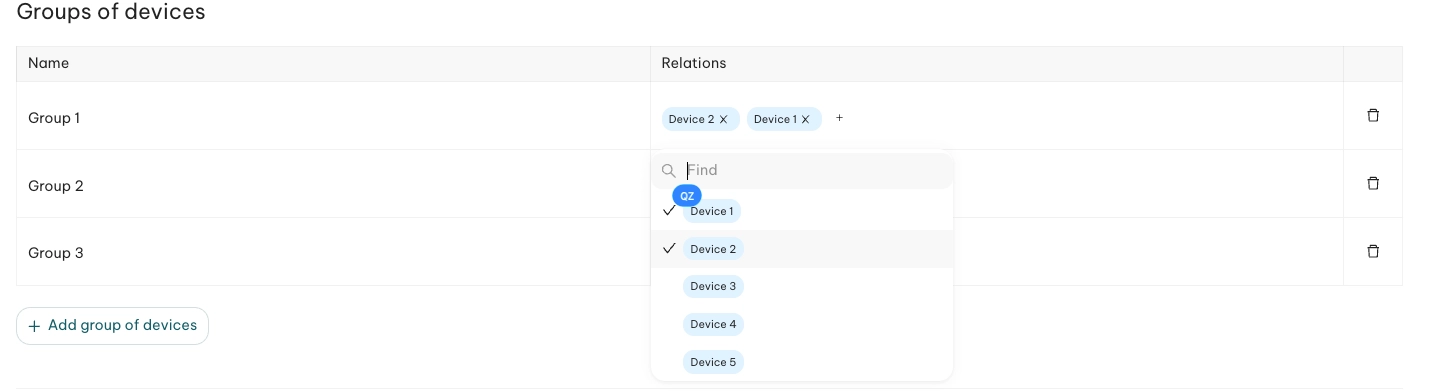
However, if you unassign a Device Group tag from a search, its related Device tags remain assigned, to prevent unexpected changes to your search.