![Flinn-Logo (1)-2.png]](https://help.flinncomply.com/hs-fs/hubfs/Flinn-Logo%20(1)-2.png?height=43&name=Flinn-Logo%20(1)-2.png)
ℹ️ What Write is
Write is the last step of your literature search in Flinn. It comes right after Full-text evaluation, so you can go from your included papers to a draft without leaving your project.

- Grounded in your search: Write drafts from the papers you included and the data you extracted from them.
- Linked citations: every reference points back to its paper, so reviewers can check the source.
- Several extraction templates at once: combine the templates a section needs in one draft.
- Tables: ask Write to build and fill a table directly in your draft.
Write is built for summarising and presenting evidence you've already screened, for example in SOTA, CER, PMCF and PSUR sections. It is designed to use only the papers and data in your search, and it doesn't draw clinical conclusions or make benefit-risk judgements. Everything it produces is a draft for a qualified reviewer to check.
📋 Before you start
- Finish your full-text evaluation. Write only works with the papers marked as included during Full-text evaluation.
- Fill in at least one extraction template for those papers. See our AI Extraction Guide for help setting up fields and reviewing extracted data.
🚀 Using the Write Feature
- Open the search you want to write from.
- Click Write in the top navigation bar, after Full-text evaluation.
- Check the active templates shown in the new chat and adjust them if needed (see below). They lock once you send your first prompt.
- Type your first prompt, for example the section you need and what data it should use.
- Review the output, then refine it with follow-up prompts.
- Copy the text into your document. Use Flinn Cite for Word to keep citations linked there. If you generated a table, you can also download it as .xlsx and add it to your main document.
🗂️ Control the data Write uses
Your draft can only use data from your active extraction templates, so choose them per section. Too many templates dilute your draft with irrelevant details, and a missing template means missing data.
You can combine templates when a section needs them. For example, a section that needs both device details and clinical outcomes works in one draft with both templates active.
⚙️ How to change active templates
Every new chat takes into account your currently active templates. To change them:
- Open Search Settings by clicking the gear icon in the top bar, just before Data Sources.

- Select or unselect the templates you need.
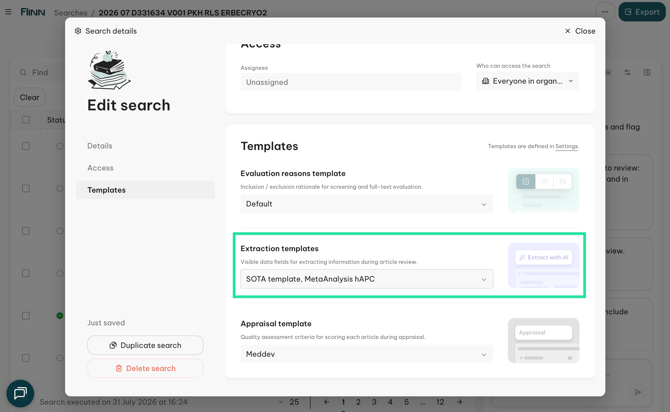
💡 Templates lock on your first prompt
You can change your active templates at any time before you send your first prompt. After that, they are locked for that chat. To use a different set, start a new chat and adjust the templates before prompting.💡 Writing several sections?
Use one chat per section, with only the templates that section needs active. This also keeps Write fast on large searches and stops long chats from losing track of earlier messages.
💡 Prompting tips that work
- Be specific: Name the section, the population and the outcome. "Summarise complications by device type for adults aged 65+" works much better than "Summarise the safety data."
- Define your criteria: Tell Write how to handle edge cases. For example: "Leave out studies where the age is missing or unclear."
- Ask for structure: Request paragraphs, bullet points or a table, and say which columns you want.
- Reuse your style: Paste a paragraph from a previous report and ask Write to update it with the current data while keeping its structure and tone.
- Iterate: Treat the first draft as a starting point. Ask for changes to one paragraph or one sentence at a time.
💬 Example prompts
- "Write a SOTA benchmark of the included devices. Group the studies by device type and summarise the advantages and limitations reported for each, in a formal tone."
- "Summarise the clinical benefits for adult patients (18+). Exclude rows where age is missing or unclear."
- "Build a table of complications by device type with columns for complication, rate and study. Split multi-arm studies into separate rows."
- "Here is last year's paragraph on vulnerable populations: [paste]. Update it with the current data and keep the structure and tone."
🔗 How citations work
- Every reference in a Write draft appears as a citation marker linked to a paper in your search, so you can trace each statement back to its source.
- Hover over a marker to preview the paper it points to.
- When you paste the text into Word, Flinn Cite for Word turns the markers into a formatted reference list in your chosen citation style.
⚠️ Always review before you submit. Write only cites papers from your search, but you are responsible for confirming that each statement matches its source and that the draft is fit for your report.
📌 Good to know (current limits)
- Very large searches: With many included papers or many text-heavy extraction fields, Write can slow down or fail to generate a draft. Keep only the templates you need and work section by section.
- Long conversations: Very long chats can lose track of earlier messages. If that happens, start a new chat.
If something fails without an error message, please let us know through the Livechat. It helps us fix issues faster.
Related articles: AI Extraction Guide · Flinn Cite for Word
❓ FAQ
Does Write read the full texts of my papers?
Not at the moment. Write only reads the extracted data.
Can I change templates in the middle of a chat?
No. Templates lock when you send your first prompt. Start a new chat and adjust them before prompting.
Which papers does Write use?
It only uses the papers marked as included in your search after Full-text evaluation, alongside the specific data you extracted from them.
Can I use more than one extraction template?
Yes. You can activate as many templates as your specific section requires.
Can Write create tables?
Yes. Simply ask for a table in your prompt and name the columns you want it to include.
How do I keep citations when I move text to Word?
Use Flinn Cite for Word. It recognizes Write's citation markers and automatically builds your formatted reference list.
Is there a limit on how many papers Write can handle?
Very large searches with many extraction fields can occasionally be slow or fail. We recommend working section by section, keeping only the templates you need active.
Who do I contact if I need help?
Reach out to your dedicated Flinn contact, or use the Livechat.