![Flinn-Logo (1)-2.png]](https://help.flinncomply.com/hs-fs/hubfs/Flinn-Logo%20(1)-2.png?height=43&name=Flinn-Logo%20(1)-2.png)
How to export my results
To begin, open the search you want to export. In the result list, click the Export button in the top right of the screen.
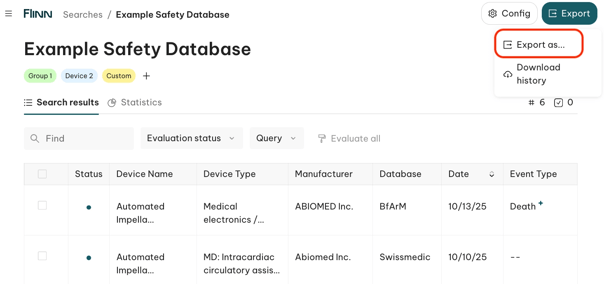
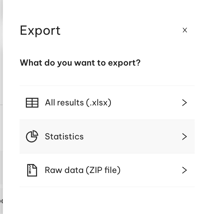
Clicking on Export → Export as…, you can trigger three different types of export:
- All results — the Excel export
- Statistics — an Excel file containing statistics data
- Raw data — a .zip file export
Both the Excel export and the raw .zip export can now be limited to included-only results, so the file contains only the reports you've marked as included.
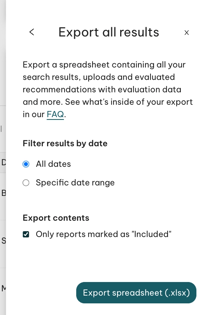
All results - the Excel export
The Excel is audit-ready and contains the following data:
1st tab — Report Summary
This tab documents the search setup and overall result counts.
| Section | What it includes |
|---|---|
| Search details | Search name, search type, last execution date, and the user who exported the file. |
| Flinn Software | The Flinn version used for the export. |
| Search Labels | Any labels applied to this search. |
| Timespan | The time period covered by the search. |
| Queries | All queries used in that search are listed. For each query: name, date range, data sources searched, exact search string or keywords used, and number of results. |
| Global results summary | Total reports queried, plus counts for evaluated, not evaluated, included, possibly included, and excluded reports. Counts are also listed separately for each database searched. |
2nd tab — Results Summary
This tab lists all exported results and their evaluations. For each result, it includes: Unique Flinn ID, original ID with backlink to the source report, query name, device name, device type, manufacturer, source, report date, event type, evaluation result, evaluation criteria, and evaluation note, if available.
3rd tab — Results Details
This tab provides more detailed result documentation, including key data points collected from FDA MAUDE metadata fields, such as product code, manufacturer, source, report date, event type, event description, device problem, IMDRF code, and patient problem.
Statistics — an Excel file containing statistics data
This lets you export your statistics data and activity. Select any group view in the Statistics feature, then export — Flinn generates an Excel file with all data points visible in that grouping.
Raw data export
The raw data export is designed for occasional use and combines an Excel export, a CSV file with all data points from Flinn, and PDFs of all reports — giving full data accessibility and supporting business continuity. As with the Excel export, you can now limit this to included-only results.
⏳Exporting all these data points is resource-intensive and may take a few minutes — keep an eye on the download panel to know when it's ready.