![Flinn-Logo (1)-2.png]](https://help.flinncomply.com/hs-fs/hubfs/Flinn-Logo%20(1)-2.png?height=43&name=Flinn-Logo%20(1)-2.png)
The evaluation system enables you to include or exclude reports while providing the option to add a justification to your evaluation.
When you generate a Search Export, this documentation will be included in the Excel table. This ensures comprehensive documentation for future reference, analysis, and audit.
How to evaluate a report
To begin, you need to access a detailed view of an incident report. This can be a full text-based report, such as MAUDE, or a PDF and text report, like BfArM. Follow the steps below:
- Locate the Evaluation tab at the top right.
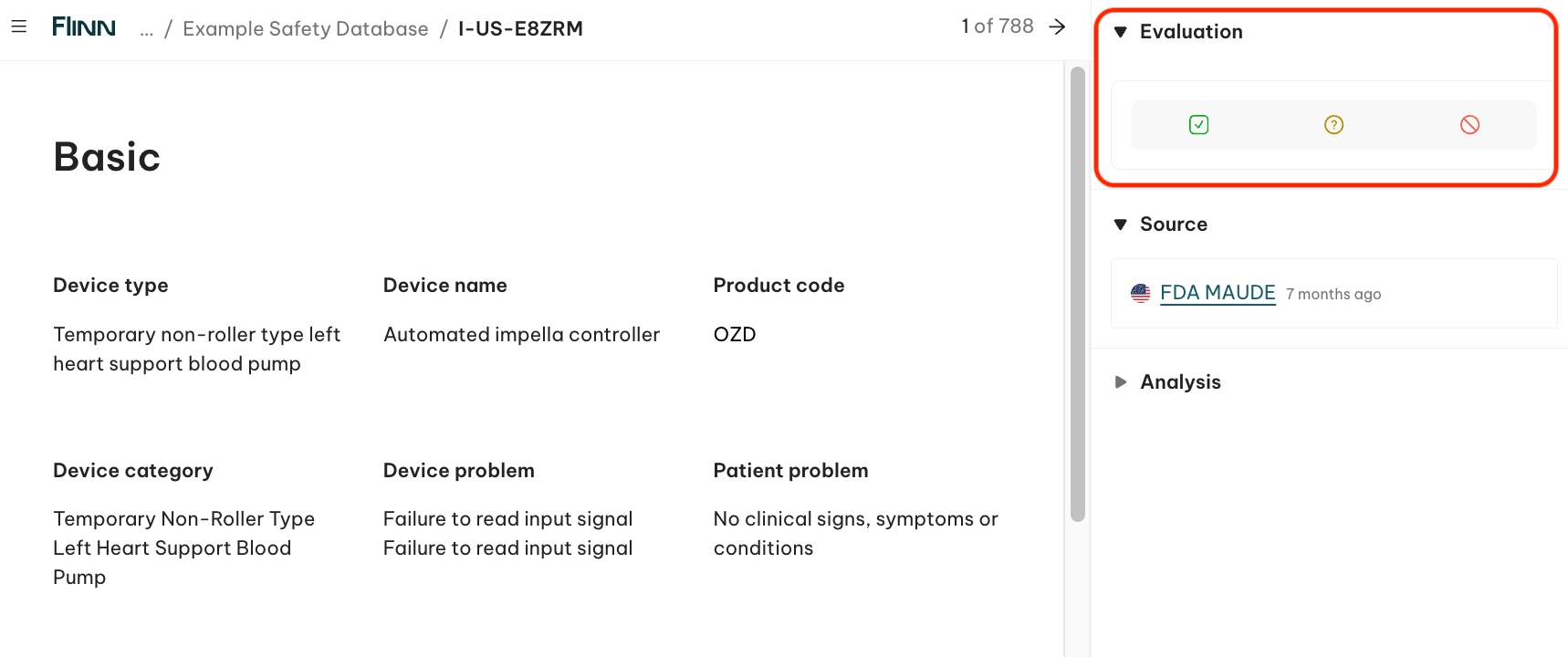
- Select an evaluation status:
-
- 🟢 Green icon: Relevant
- 🟡 Yellow icon: Possibly relevant (working-on-it status)
- 🔴 Red icon: Excluded
-
- Optional: select a predefined justification or criteria to document the reasoning behind your decision — you can select one or multiple criteria. 🔍 These criteria can be defined in Settings (Admin role required).
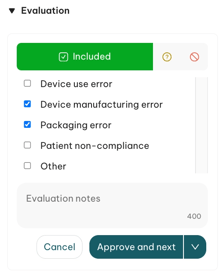
- Optional: add a note.
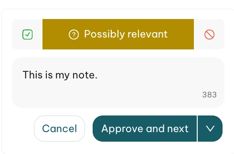
- Click Approve and next to save your evaluation choice, any selected criteria, and the note.
- If any changes are required, click the 🖋️Edit button underneath your evaluation to enter editing mode. Remember to save your changes by clicking Approve and next.
💡 Evaluations are saved in relation to the search. If another search delivers the same report, the first evaluation won't be reflected for the new search.
💡 Evaluations are shared across your entire organization. All team members will have visibility of reports' evaluations, along with the associated criteria and notes.