![Flinn-Logo (1)-2.png]](https://help.flinncomply.com/hs-fs/hubfs/Flinn-Logo%20(1)-2.png?height=43&name=Flinn-Logo%20(1)-2.png)
This page which provides a comprehensive list of available operators to build your Safety Database query on Flinn, along with explanations and best practices.
Basic operators
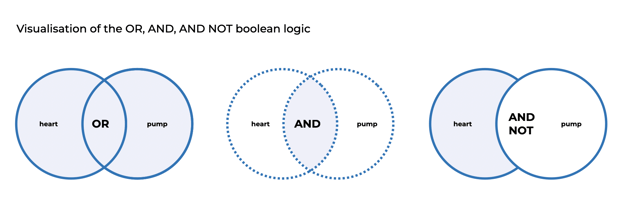
Boolean Operators are words (such as AND, OR, or NOT) used as conjunctions to combine or exclude keywords in a search, thereby generating more targeted results. By employing these operators, you can save time and effort by filtering out irrelevant incident reports.
-
OR
Expand keywords together, including every report containing either one or the other keyword.
Example query:implant OR prosthesis
Flinn understands: Show me all results containing either 'Implant' or 'prosthesis' anywhere in the report. -
AND
Combine keywords together, including only reports containing both keywords anywhere in the texts.
Example query:implant AND prosthesis
Flinn understands: Show me all results containing 'implant' and 'prosthesis' anywhere in the report. I don't want to see reports containing only 'implant' or only 'prosthesis'. -
NOT
Exclude keywords. NOT exclude all reports containing the specified keywords.
Example query:
Example query:implant NOT prosthesis
Flinn understands: Show me all results containing 'implant' but not if they contain 'prosthesis' anywhere in the report. I don't want to see reports containing both words 'implant' and 'prosthesis'."contact lens" NOT daily
Flinn understands: Show me all reports containing 'contact lens' unless they contain also the keyword 'daily'. I only want to see reports talking about contact lens that are not for daily wearing (but rather montly, bi-monthly... all other possibilities that apply).
Other important operators
- Quotation Marks “” exact term operator
Always put quotation marks when using two words to form a keyword.
Using it will include only reports containing exactly the keywords in the same order.
Example query: ”dental implant”
Will only give results containing exactly ‘dental implant’.
➤`‘implant dental’ or ‘implant for dental’ won’t be included.
💡 Please put quotation marks for hyphenated words, ex: “post-market”
Flinn will also find results with “post market” with no dash
- Asterisk symbol * wildcard operator
Put * at the end of a word stem to find any word starting with this word stem.
Will find all results containing a word starting with implant-
Example query:implant*
➤ e.g. implants, implanted, implanting
Quick access to operator description in Flinn
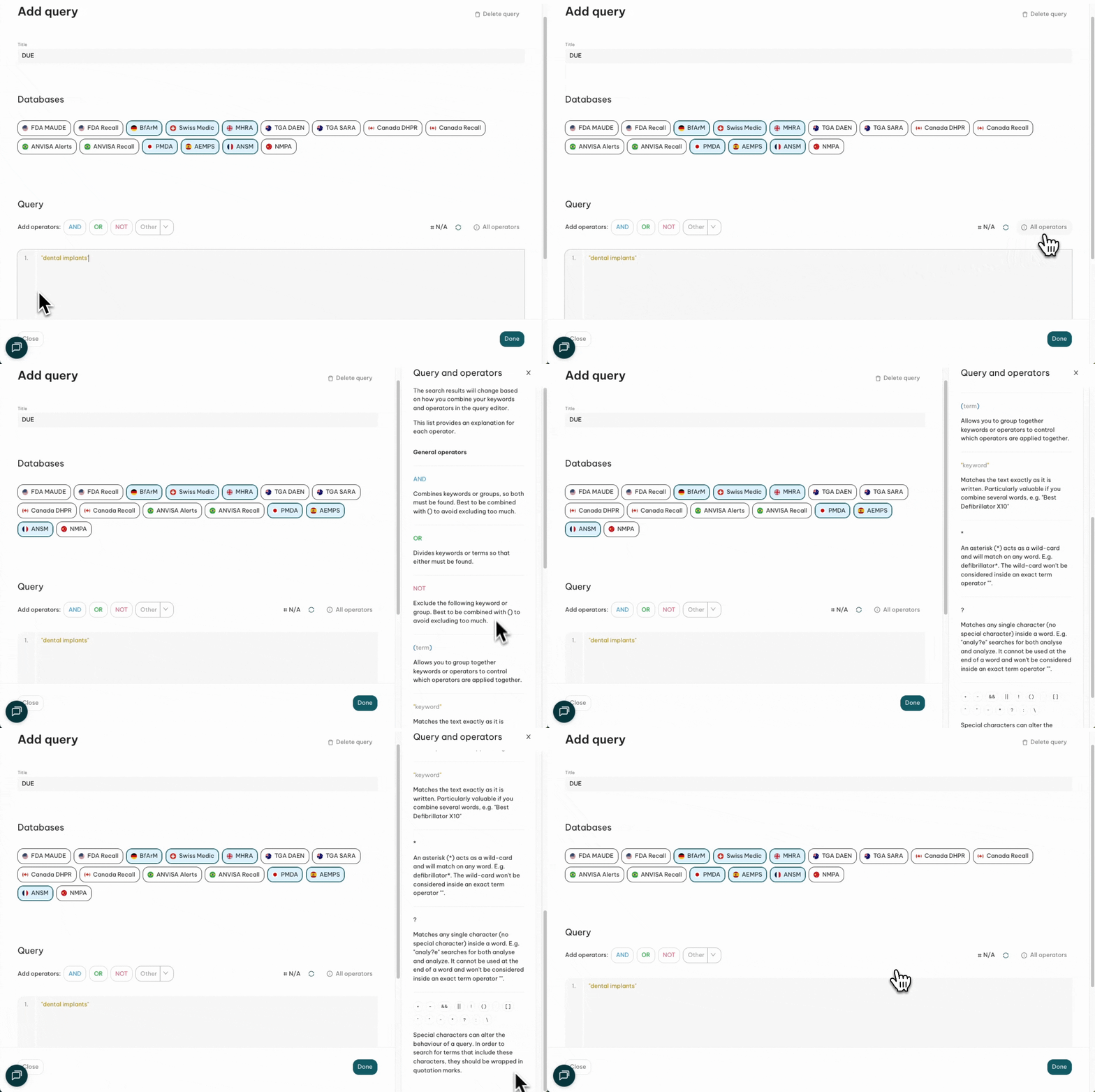
See a definition of all operators available by clicking on All operators on the right side of the query builder, a side panel will open:
Important rules and tips
💡Always put an operator between keywords (unless inside quotation marks)
💡 Line breaks are not considered as an OR. They do not replace any operator.
You always have to specify which operator you need between different lines.
Lines are only meant to help you give a clean structure to your query.
💡 Results won’t differ if using capital letters or not.
The word ‘Monitor’ will return reports containing both ‘Monitor’ and ‘monitor’.
Advanced Operators for FDA Maude
More operators are available if you select the Maude database only in your query.
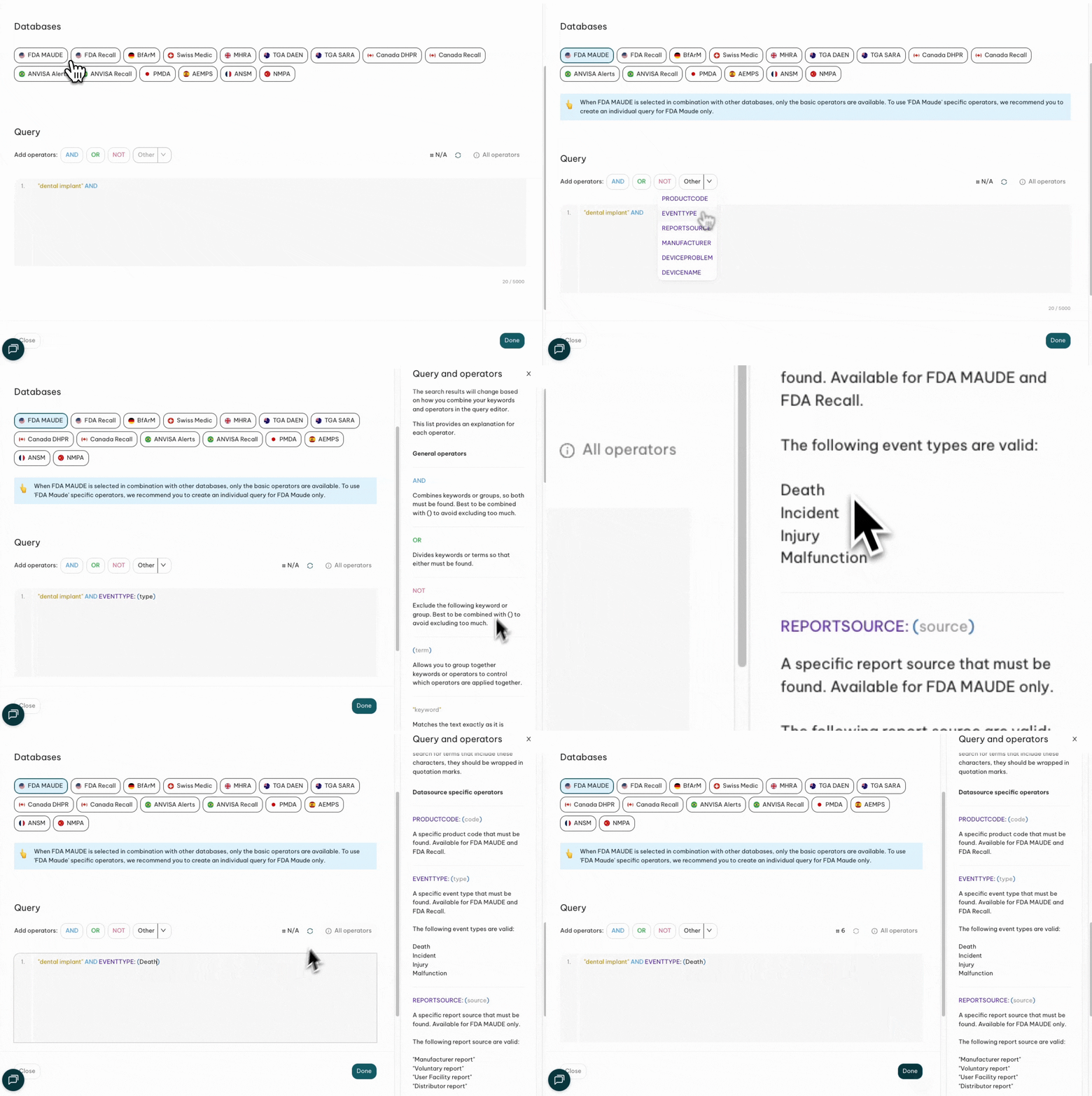
- PRODUCTCODE: ( )
Allows you, in combination with OR, AND, NOT to include or exclude product codes for MAUDE.
Example query: (dental AND implant) NOT PRODUCTCODE: (MKJ)
Will show results containing dental and implant with a product code other than ‘MKJ’.
- EVENTTYPE: ( )
Allow you, in combination with OR, AND, NOT to include or exclude report incident type for MAUDE.
Example query: dental AND implant NOT EVENTTYPE: (Malfunction)
Will find results containing dental and implant which are not ‘Malfunction’ types of event.
- REPORTSOURCE: ( )
The following report source are valid:
"Manufacturer report"
"Voluntary report"
"User Facility report"
"Distributor report" - MANUFACTURER: ( )
Search in the Manufacturer field directly.
If you want to match an exact name, type the manufacturer name within quotation marks "". - DEVICENAME: ( )
Search in the Brand Name field directly.
If you want to match an exact name, type the device name within quotation marks "". - DEVICEPROBLEM: ( )
Search in the Device Problem field directly.
If you want to match an exact device problem, type the problem name within quotation marks "".